

- Advertising
How Do I Block Google Analytics Spam?
•
 Spammers are not visiting your site, nor attempting to access it.
Rather, their goal is to send fake pageviews directly to your Google Analytics to get your attention and induce panic, and/or to mask or inflate their own traffic numbers, hoping you won’t notice.
In any event, your ads are not loading and no one is visiting your page. However, we still recommend setting up a filter to block this.
Your ads and earnings will not be affected, but your reporting will; RPMs will appear lower, as Google Analytics is counting artificial pageviews with no ad impressions to show for them.
Spammers are not visiting your site, nor attempting to access it.
Rather, their goal is to send fake pageviews directly to your Google Analytics to get your attention and induce panic, and/or to mask or inflate their own traffic numbers, hoping you won’t notice.
In any event, your ads are not loading and no one is visiting your page. However, we still recommend setting up a filter to block this.
Your ads and earnings will not be affected, but your reporting will; RPMs will appear lower, as Google Analytics is counting artificial pageviews with no ad impressions to show for them.
How Do I Block Google Analytics Referral Spam?
1. Select Admin (the gear icon) on the left menu bar, then select All Filters in the lefthand property.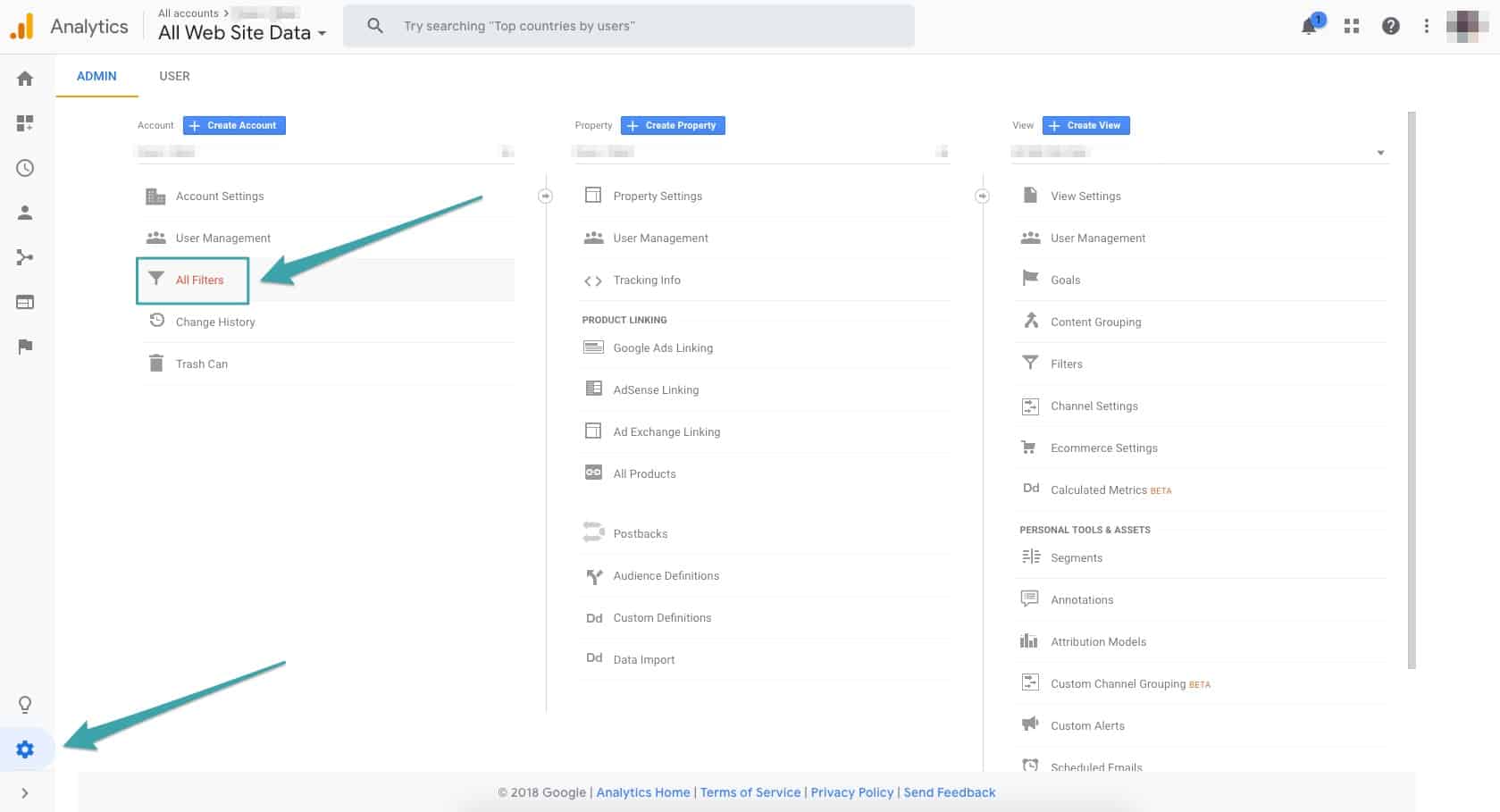 2. Click the Add Filter button.
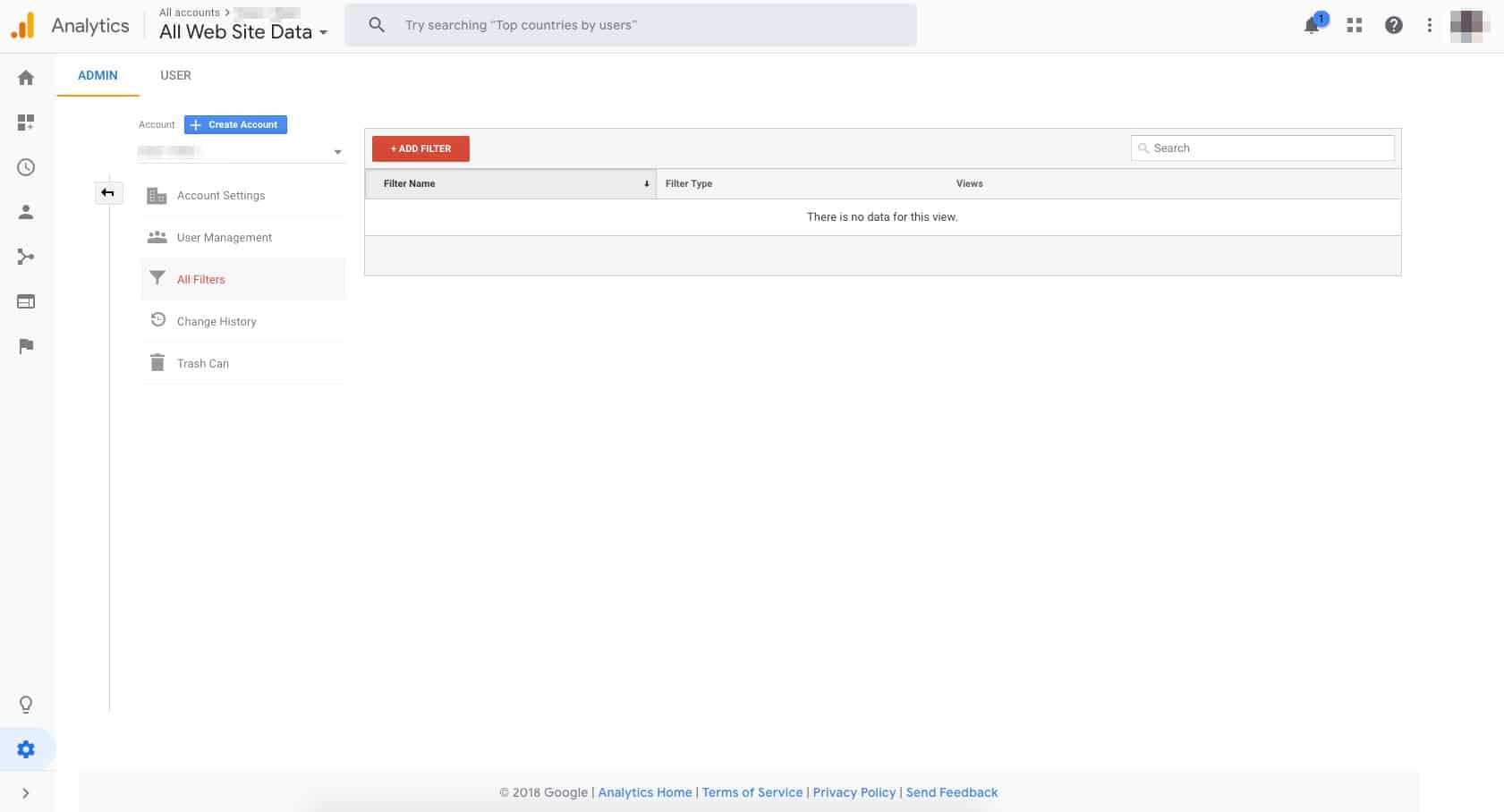 3. Give your filter a name.
Anything, for your reference.
4. Select Custom under filter type. 5. Select Exclude (default). 6. Under Filter Field, select Referral.This is the most common category in which fake traffic appears in Google Analytics. You can also filter by geographic location, page title and other options.
7. Under Filter Pattern, enter the URL in question.e.g. lifehacĸer (dot) com, although this is only example! Copy exactly what appears in your analytics.
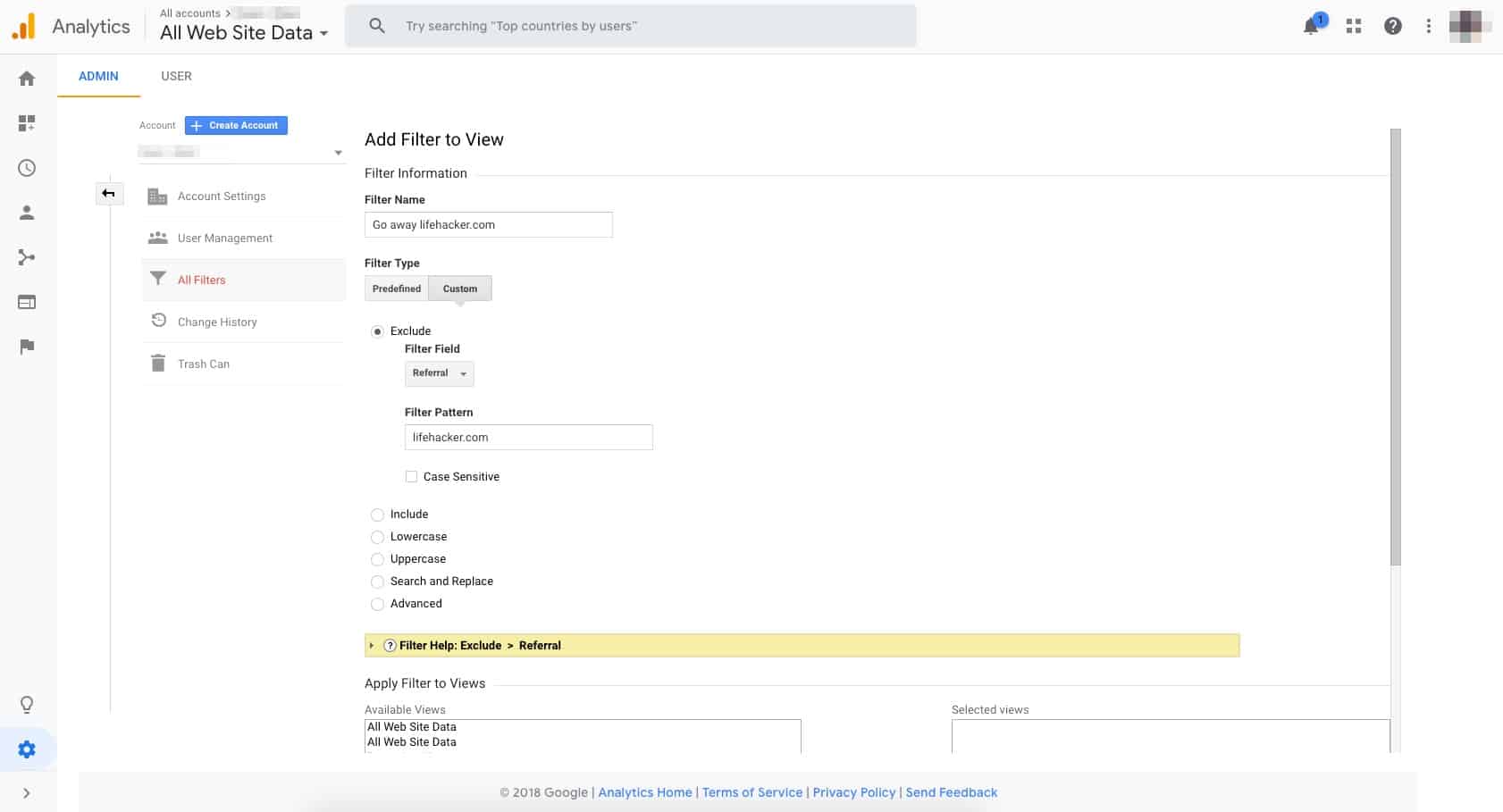 8. Under Apply Filter to Views, select any website(s).
This may be applicable if you have multiple affected sites under the same Google Analytics account. Add each of them in as seen here:
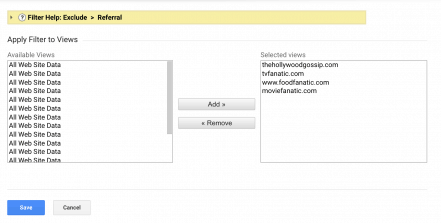 9. Save and watch the fake traffic disappear, usually within hours.
It should be as simple as that, but by definition, spammers are transient and extremely adaptable, and as a result, challenging to keep up with.
About the author

Share this page